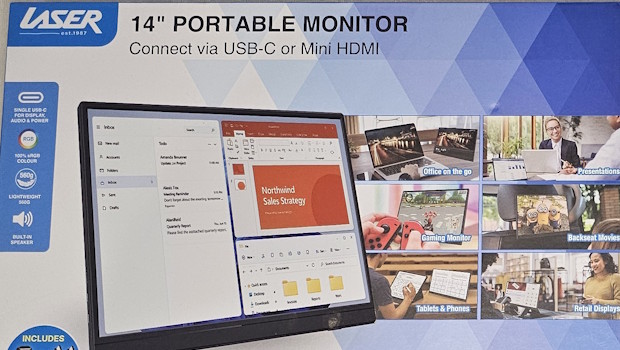
14 Inch Portable Monitor by Laser
Summary: Add an extra screen to your work or play either at home or on the go.
3.5
Mobile Monitor
We’ve come a long way since the early laptops with small screens glowing in monochrome… we now have high‑definition screens as big as the CRT monitors we used to have filling our desktops. But sometimes we want more screen real estate, and when we want that while on the move, our options might be a bit limited. Laser, however, provides an option to add 14 inches of 1920 x 1200 resolution screen to your toolkit.
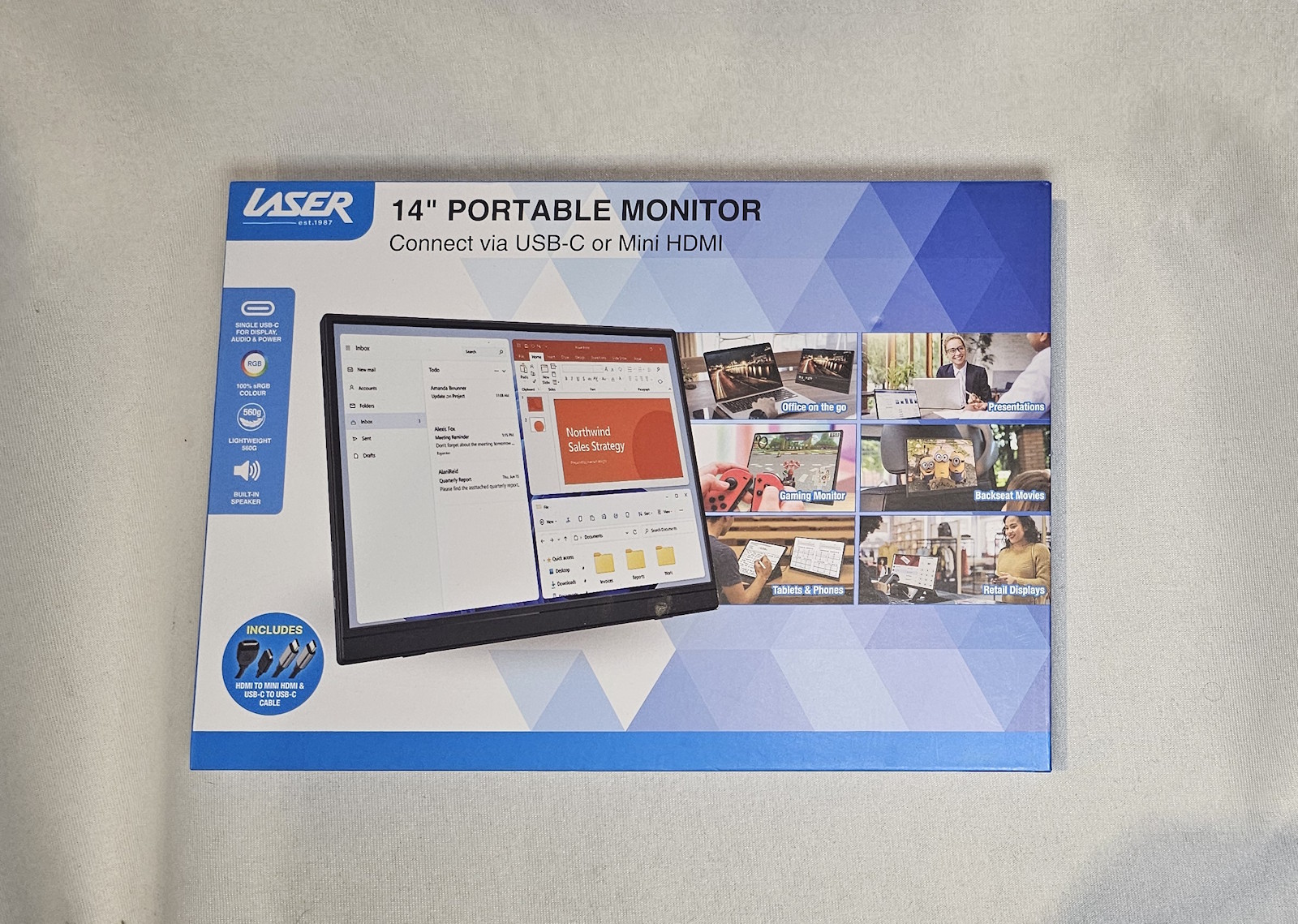
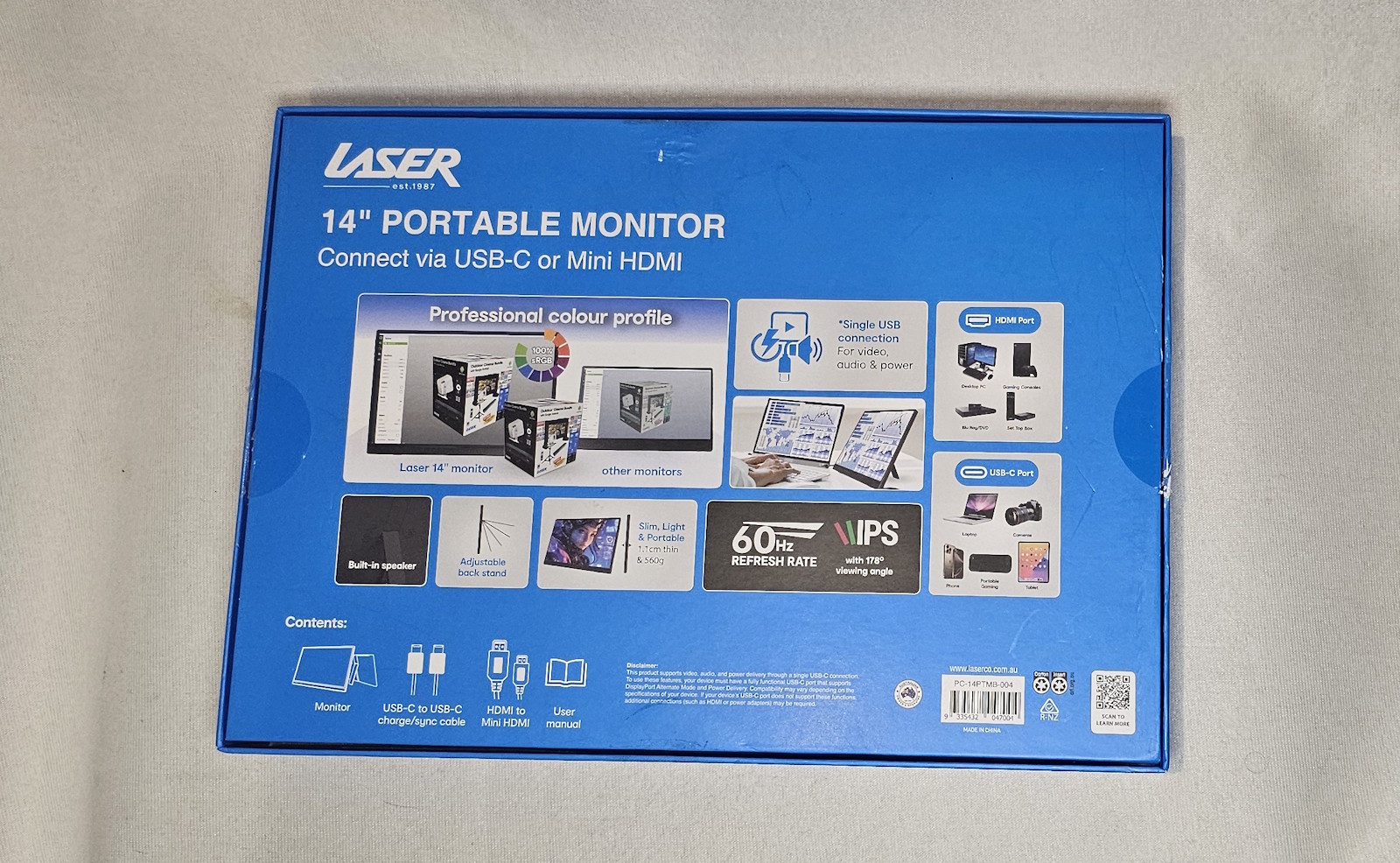
Let’s start with the stats Laser provides:
One-cable USB-C setup: Use a compatible USB-C device to send video, audio and power through one connection for a cleaner portable workspace.
14 inch IPS screen: The 1920 x 1200, 16:10 IPS display gives you clear everyday viewing for documents, browsing, study and presentations.
Lightweight travel design: At approximately 560g, it is easy to pack for university, work trips, shared desks or compact home setups.
Mini HDMI input: Connect compatible HDMI devices using the included HDMI to mini HDMI cable, with USB-C power required for operation.
Built-in speakers: Integrated 2 x 1W speakers help keep video, calls, presentations and casual viewing simple without extra audio gear.
VESA mounting support: 75mm VESA mounting support gives you extra flexibility for counters, desks and semi-permanent display setups.
They do also state:
Compatibility and setup
For the simplest setup, connect using USB-C from a device that supports video output, audio and power delivery. Some phones and tablets may need DisplayPort Alternate Mode or a compatible adapter.
When using HDMI, connect the HDMI to mini HDMI cable for video and connect USB-C power to the monitor. A USB-C power adapter is not included.
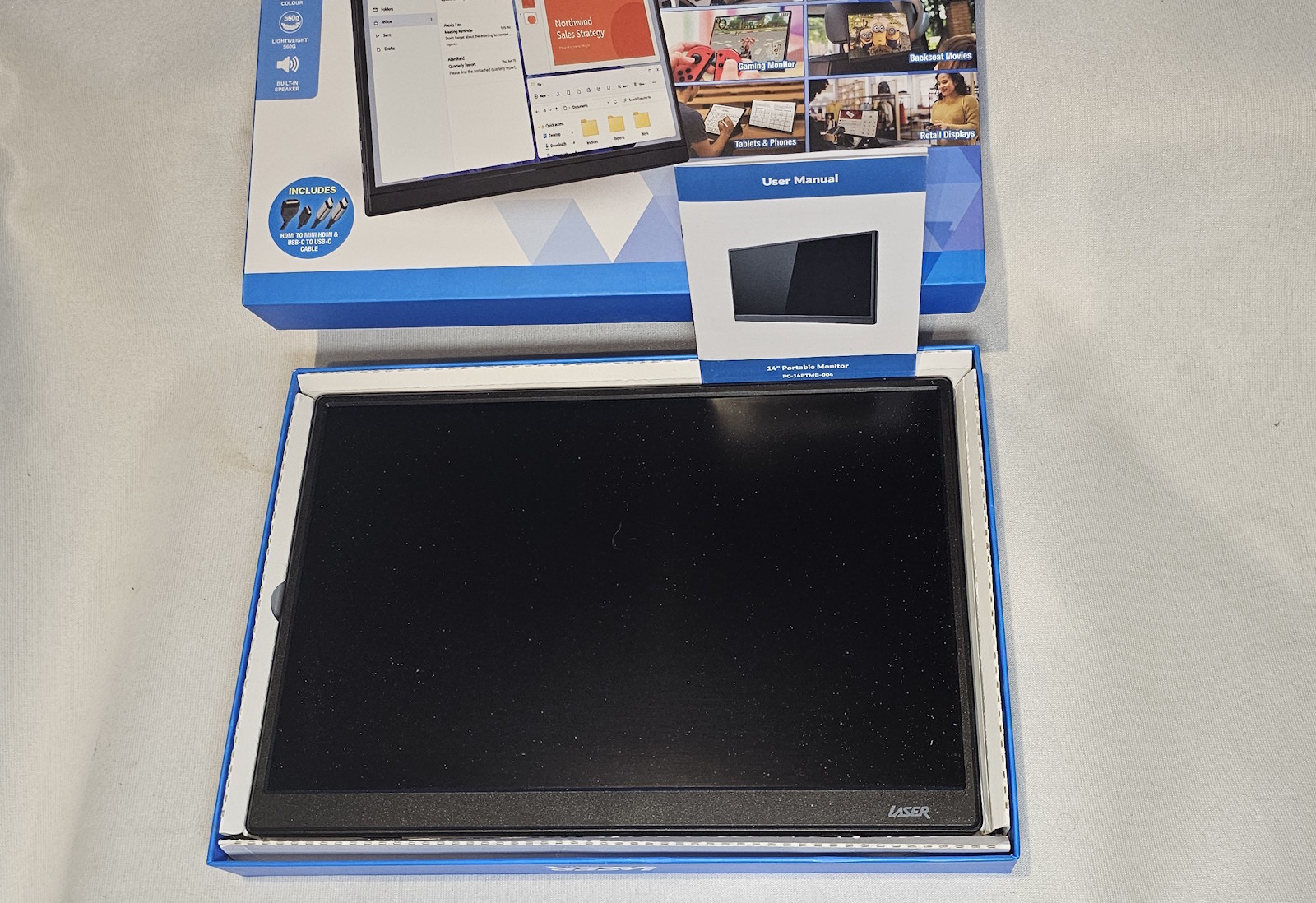
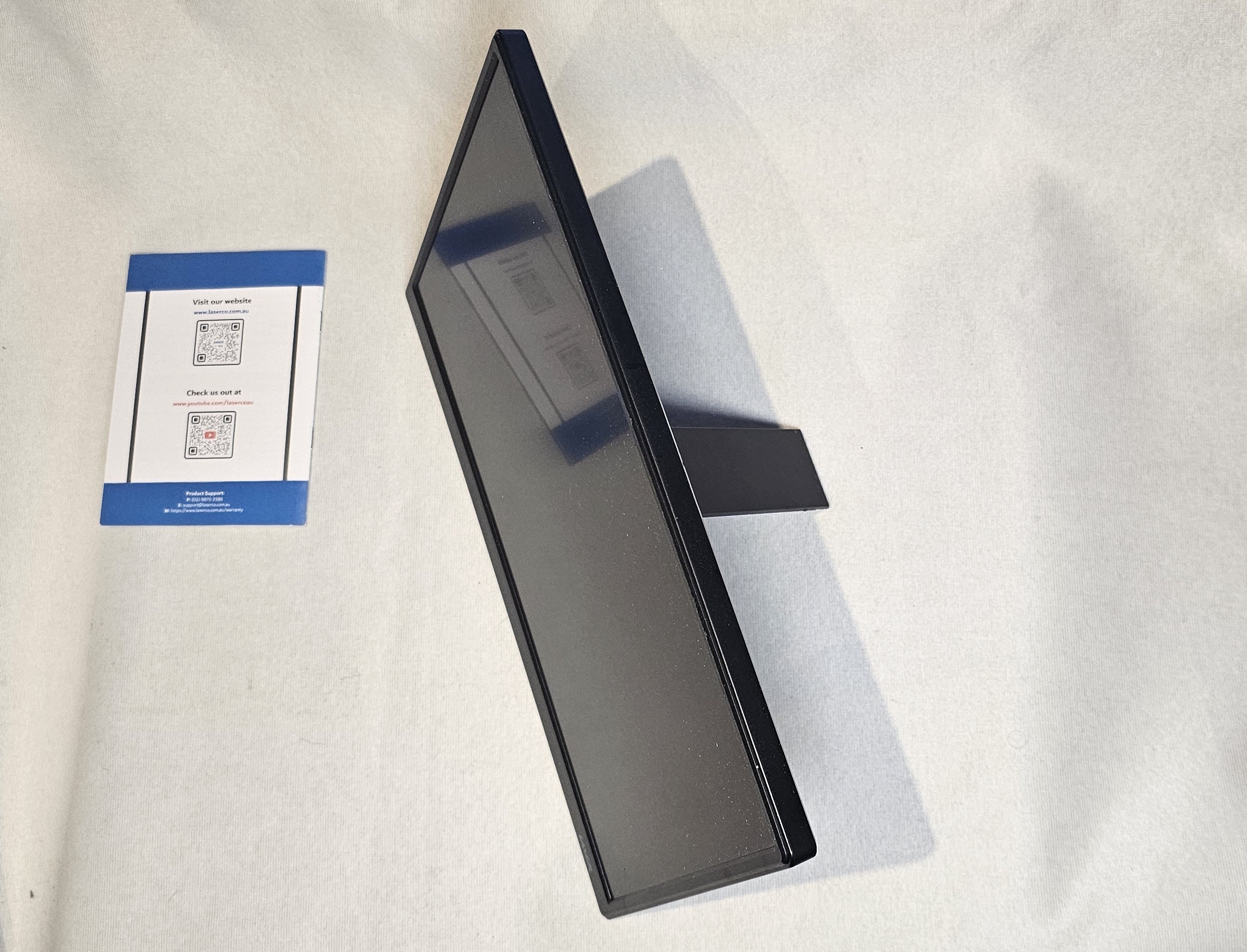
The first thing that is noticeable about the monitor is the weight… it feels very light. This has pros and cons. It means if you are indeed taking it with you while out and about, it’s not going to feel like a burden — it’s less weight than carrying a large Dare Iced Coffee. But that weight is partly achieved by the material the monitor is made of, which feels like a fairly cheap plastic. It’s a trade‑off individual users will have to weigh up… are you likely to be taking it places where it needs to be robust? Maybe look for another option. Are you likely to be using it in fairly controlled or safe environments? The frame should be fine, and the weight makes it easy to take around.
The connectivity is where I had my biggest issue. I’m not sure how many devices are actually supported by the “one cable” notion of just plugging in the USB‑C and powering and providing video over the one cable. My current phone (Samsung Galaxy S23 Ultra) does seem to support display over USB‑C, but it didn’t seem to want to allow it (I had around 83% charge, so that shouldn’t have been the issue). I attempted to run video over USB‑C with my main computer, which uses Windows 11. I first tried via a USB‑C connector on the front of my case, then I used the USB‑C connection from the back which is compatible with fast charging, and again didn’t seem to have any luck (there may have been another setting somewhere that I missed, but at the very least it’s not “plug and play”).
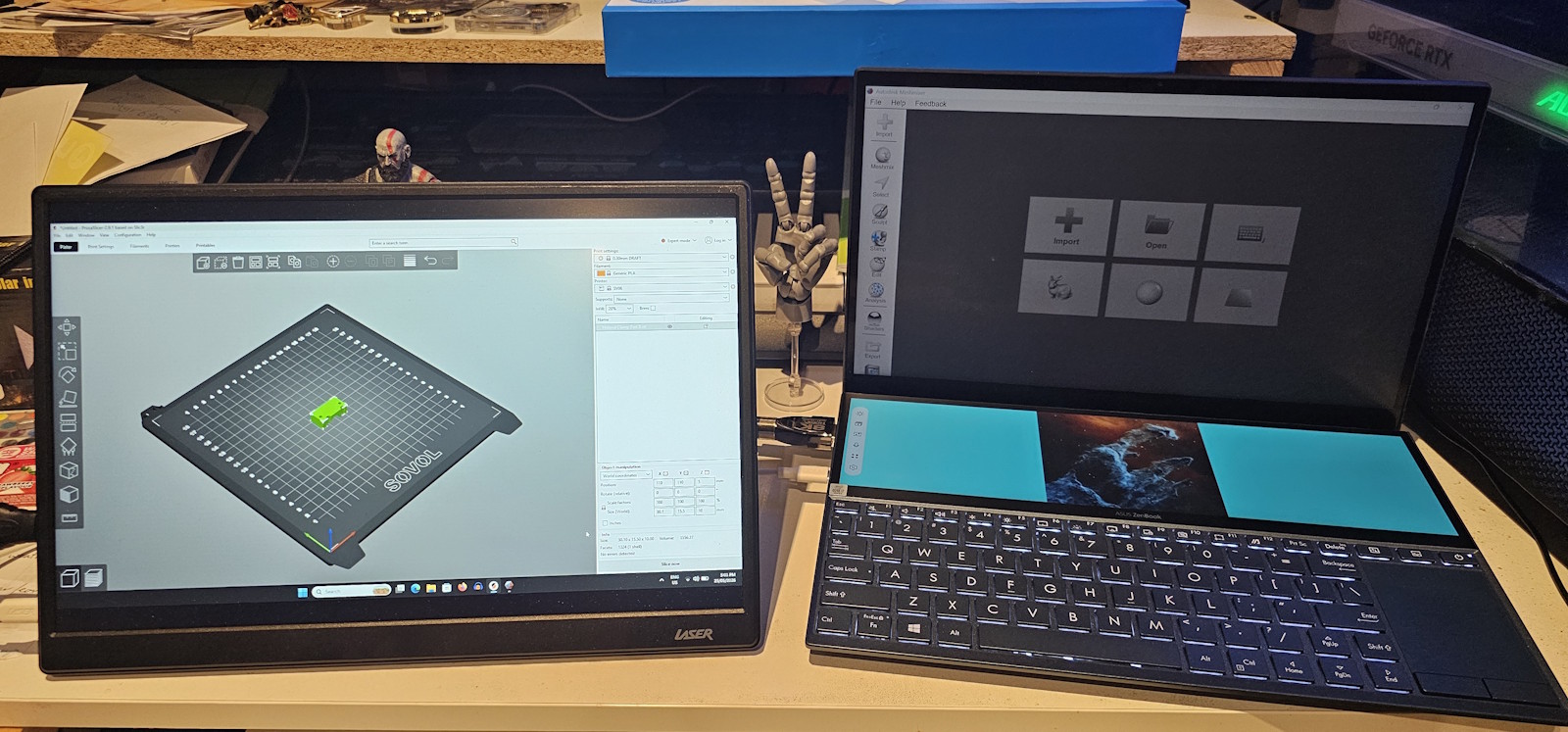
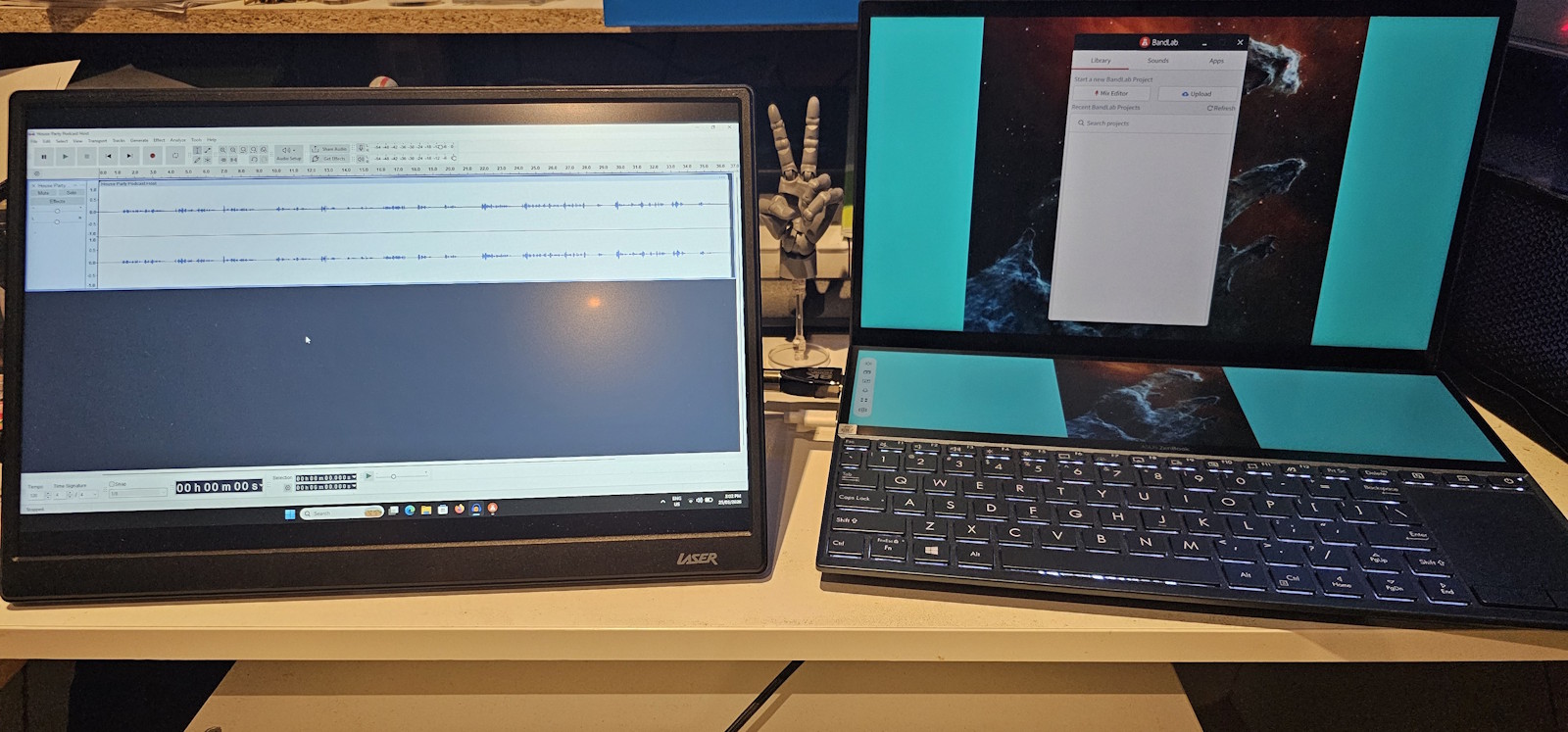
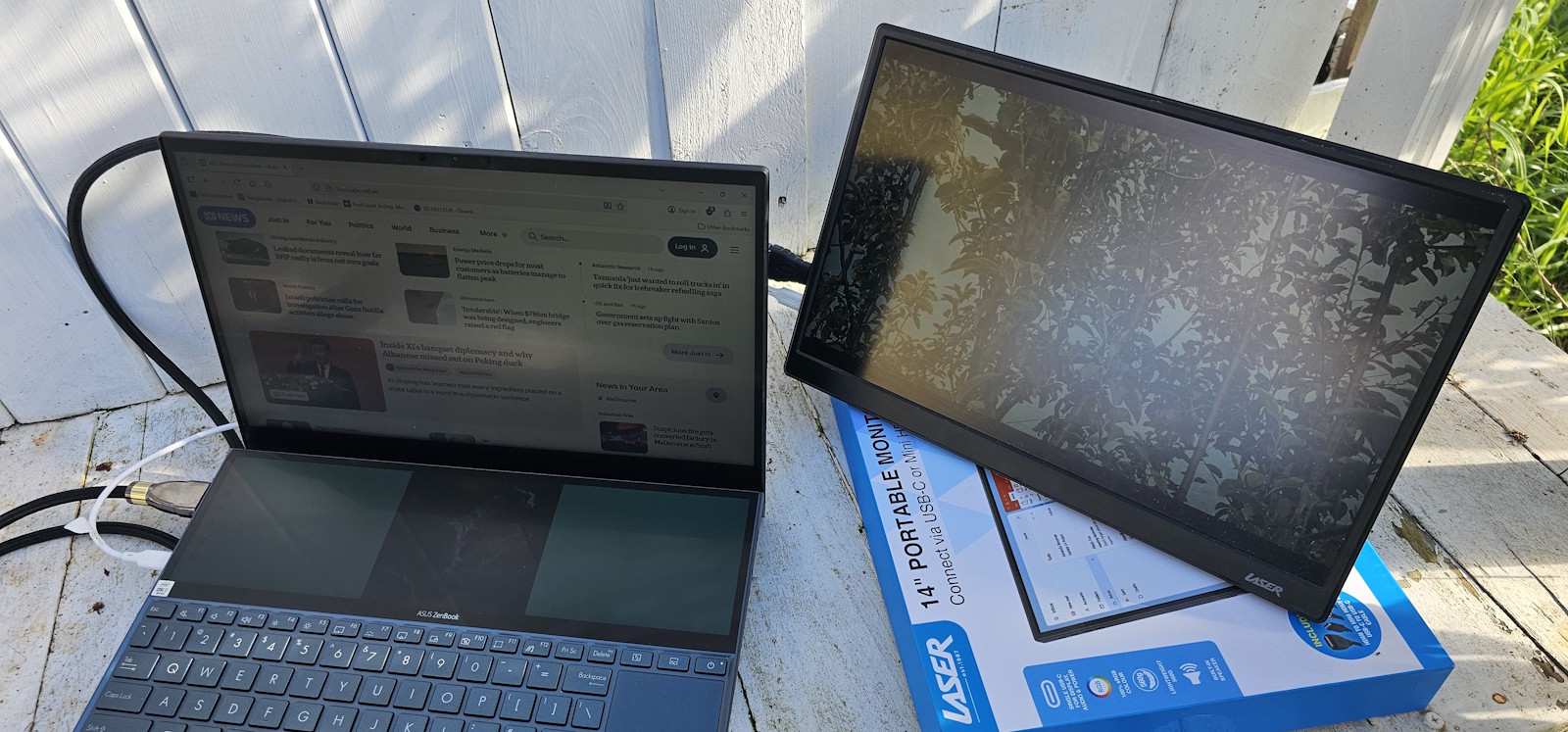
Fortunately, when I grabbed an HDMI mini cable (well, technically a HDMI to mini HDMI adapter for a HDMI cable), things went very smoothly. With HDMI mini, the monitor came on straight away and defaulted to mirroring my laptop screen. I was then able to change where the monitor sat in the hierarchy of my screens (I have an Asus Zenbook Duo, so it alone has the main screen and a smaller screen above the keyboard). Running power to the monitor via a USB‑C cable and the video signal over the HDMI mini cable was effortless and didn’t seem to drain the battery any more noticeably than standard use (it was obviously using power, but not rapidly).
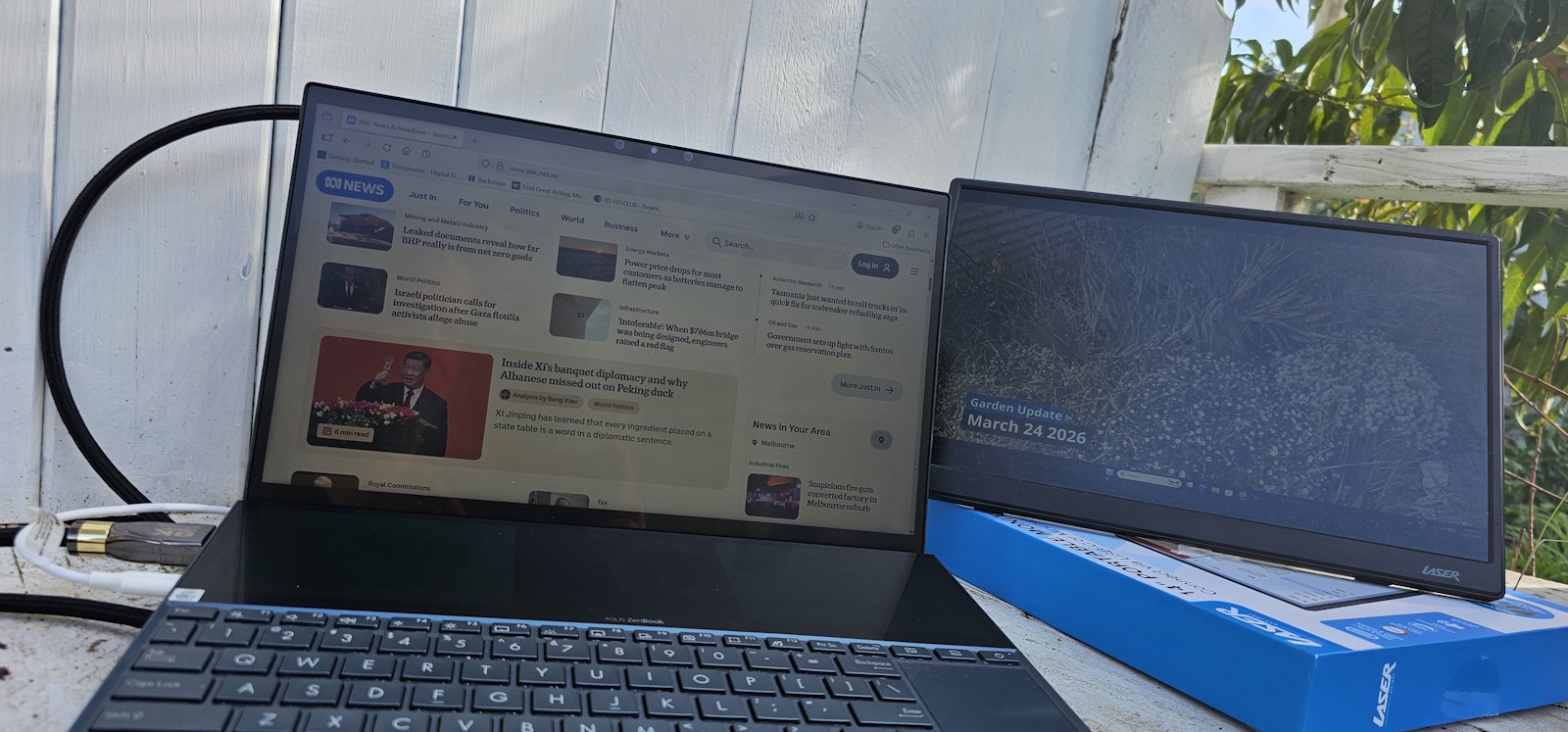
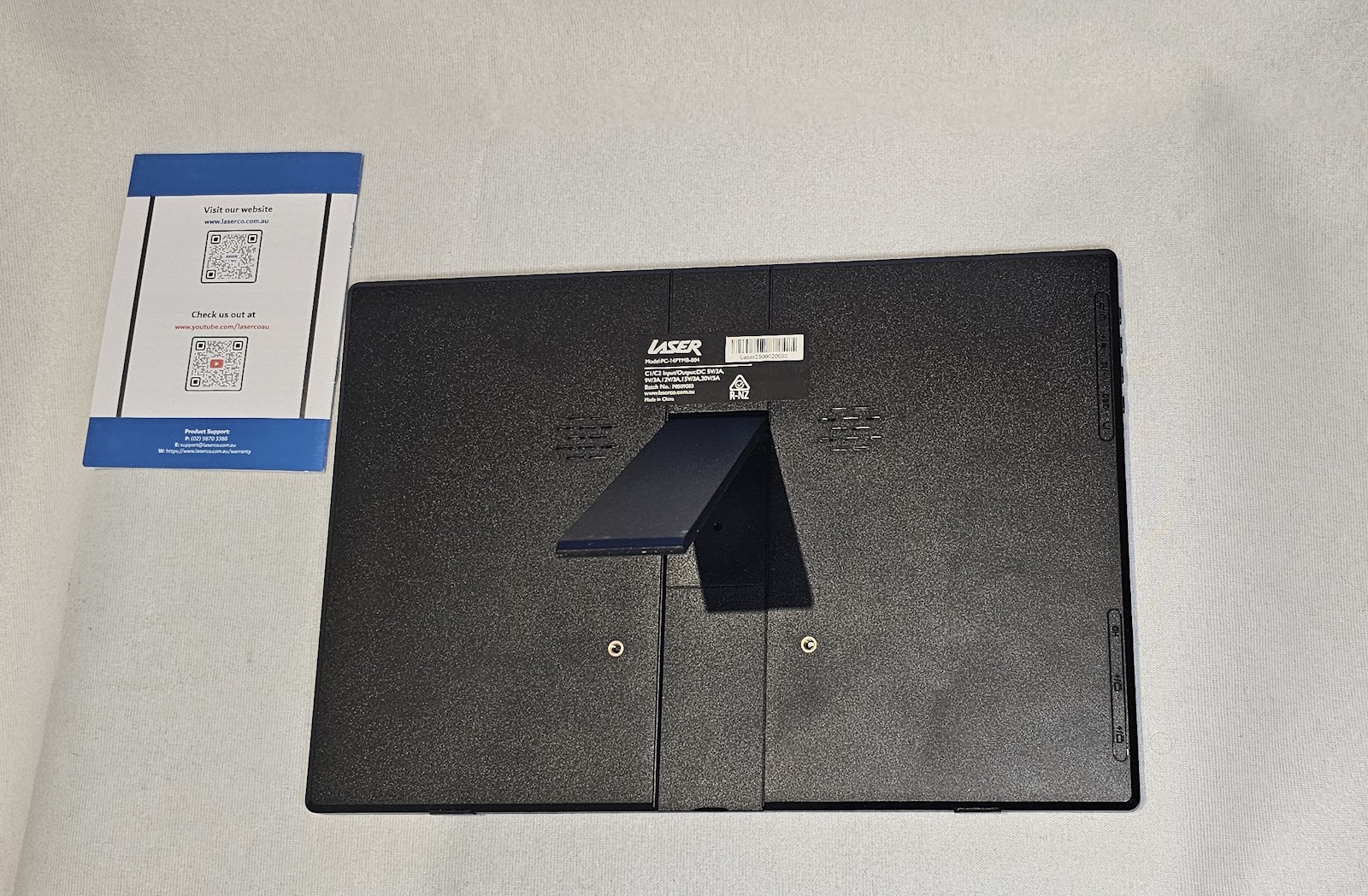
The stand on the back of the monitor is a bit tricky… I tucked it away at one point and when I went to extend it I found it was “locked” in place… it wasn’t technically locked in… but I did have to use some degree of force to get it to open out and given that the frame feels somewhat flimsy… I was a little concerned I’d break the monitor in doing so… since then I just try and make sure I don’t tuck the stand all the way back flush with the back of the monitor and that seems fine.
Final Thoughts
If you want a second (or perhaps I should just say an extra) monitor, the Laser 14‑inch USB‑C monitor might well be a good option. If you have a HDMI mini cable (one should be provided in the box along with a USB‑C cable), then it should be simple enough to connect and get going. If you need something a bit more rugged, then you might want to avoid it, but if you are just after more screen space and will be keeping it fairly safe, then it certainly is a handy addition to your workspace.
About the Author

Chris O'Connor Father of four, husband of one and all round oddity. Gaming at home since about 1982 with a Sinclair ZX Spectrum. Moving on to the more traditional PC genre in the years that followed with the classic Jump Joe and Alley Cat. CGA, EGA, VGA and beyond PC's have been central to my gaming but I've also enjoyed consoles and hand helds along the way (who remembers the Atari Lynx?). Would have been actor/film maker, jack of many trades master of none.
Related Posts

TEAMGROUP Launches The ACE 8K MicroSDXC Memory Card Unleash Device Performance to Capture Every Moment →
OPPO Bubble Lands in Australia as Reno16 Series Goes On Sale →

Majority of Young Australians Want Esports at the Olympics, Study Reveals →